I’m always surprised to hear that people are still asking for block style editors for WordPress – honestly I thought these would’ve gone away once Gutenberg took hold! I am not a fan of any of these builder frameworks – be it Gutenberg, Divi, Elementor, or Beaver Builder. I’ve done enough sites with them to realize they’re a time suck – they are always buggy and never accessible – in fact a large part of my client work several years back was often removing these and rebuilding the sites to make them easier for the end client. They were just too confusing for clients to use – and infinite combinations means you can never really test all versions, so bug hunting was constant.
Over the years I’ve developed a hybrid approach using ACF Flexible Content fields. This allows the client to still have freedom – they can build their own pages by choosing modules, dragging and dropping them around, or deleting them if they wish. The backend is simpler for the client to edit and relies a lot less on Javascript, making it more stable. ACF doesn’t spit out any frontend code (unless you tell it to), so you have 100% control over the front end.
Note: I also use ACF Extended Pro, which has extra admin layout fields like columns, in case you’re wondering how I did those.
What does this look like for the user?
Let’s start with our end user, since that’s the most important person in this equation. After creating a new page and choosing the Page Builder template, you’ll get a nice blankish admin screen:
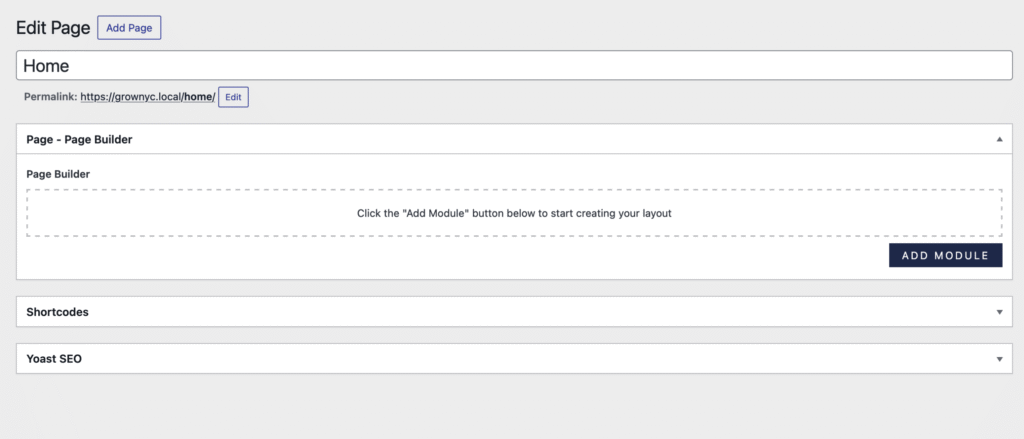
Clicking the “Add Module” button brings up a nice gridded list of images and titles for all the modules (this is custom, we’ll get into this later!).

After choosing a module, in this case we’ll go for the “Hero”, you’re presented with all the fields and options for that module:

Here you can see we have multiple styles and options for this module. It’s organized in a neat, precise manner, and the fields placement mimic what they client will see on the frontend, without being overwhelming or frustrating. The client can then go on to add as many modules as they please:

And if, like me, they get overwhelmed by all the modules or need to focus on one spot, they can all be collapsed via accordions:

That’s it! No messy React, a lot less Javascript, a lot less bugs!
What does this look like for the developer?
This method is also great for the developer because it doesn’t create a ton of extra work versus static templates. Each module is it’s own file, and sometimes modules with vast styles will have those in separate files as well. I keep them all in theme-name/includes/modules to keep it nice and tidy.
Important Tip: ACF Flexible Content fields can get slow and buggy very quickly if you try to put all of the modules directly into the Flexible Content field. Instead, make every module it’s own field group and set it to inactive. Then clone each module into the flexible layout field. This keeps the builder super fast no matter how many modules and fields you have, and as long as you choose “clone all fields” you only have to edit that specific module and the clone will update it inside the flexible layout field.
An example of some of the field groups:

And in the page builder field group, everything is just cloned inside it’s Layout field:

Cool, now show us the thumbnail trick!
Having thumbnails instead of just text in the modules popup list makes it so much easier for the end user to quickly find what they’re looking for. You’ll need ACF Extended for this and a little configuration to work. In your Flexible Content field group, you’ll see a toggle for “Advanced Flexible Content”.

Go ahead and turn that on to get all the options, and then turn on “Layout Thumbnails” as well:

All you’ll need to do after this is point ACF Extended to where your thumbnails will be in your functions file:
filter('acfe/flexible/thumbnail',                                          $thumbnail, $field, $layout);
filter('acfe/flexible/thumbnail/name=my_flexible',                         $thumbnail, $field, $layout);
filter('acfe/flexible/thumbnail/key=field_5ff71ef3542c2',                  $thumbnail, $field, $layout);
filter('acfe/flexible/thumbnail/layout=my_layout',                         $thumbnail, $field, $layout);
filter('acfe/flexible/thumbnail/name=my_flexible&layout=my_layout',        $thumbnail, $field, $layout);
filter('acfe/flexible/thumbnail/key=field_5ff71ef3542c2&layout=my_layout', $thumbnail, $field, $layout);

add_filter('acfe/flexible/thumbnail/layout=my_layout', 'my_acf_layout_thumbnail', 10, 3);
function my_acf_layout_thumbnail($thumbnail, $field, $layout){

    // must return an url or attachment id
    return 'https://www.example.com/my-image.jpg';

}
My previous team at Simpatico liked to automate things (as they should) so instead of doing this for every single module, we created a little function that grabs the name of your module and auto appends that to the image url – all you have to do is make sure your image name matches your module name! It even auto detects the file extension, so it doesn’t matter if you use jpgs, pngs, gifs, svgs, or a combo of any of these:
function format_module_name($name) {
	if (empty($name)) {
	return '';
	}
	$name = str_replace('_+_', '-', $name);
	$name = str_replace('_a_', '-', $name);
	$name = str_replace('_', '-', $name);
	return $name;
}

function page_builder_module_thumbnails($thumbnail, $field, $layout) {

	if (empty($layout['name'])) {
		return $thumbnail;
	}

	$layout_name = format_module_name($layout['name']);

	$url = get_template_directory_uri() . '/admin/assets/images/module-thumbnails/' . $layout_name;

	$file_extensions = [
		'.gif',
		'.svg',
		'.jpeg',
		'.jpg',
		'.png',
	];

	foreach ( $file_extensions as $extension ) {
		$file_path = get_template_directory() . '/admin/assets/images/module-thumbnails/' . $layout_name . $extension;
		if ( file_exists($file_path) ) {
			$url .= $extension;
			break;
		}
	}

	if ( !file_exists($file_path) ) {
		$url = get_template_directory_uri() . '/admin/assets/images/module-thumbnails/default.svg';
	}

	return $url;

}
add_filter('acfe/flexible/thumbnail/name=page_builder', 'page_builder_module_thumbnails', 10, 3);
You can then hook into the acf admin CSS and style as you like!
Am I losing work because of this?
Maybe? I’ll still accept a block builder project (for now), but I’ll try to talk the client out of it first. In the end, they want what they want and it’s my job to give it to them, but I’ll continue recommending this route instead, at least until these builders improve their UX.

Amber Weinberg
Amber is a freelance front-end developer specializing in semantic and accessible custom WordPress themes. She works with agencies and other freelancers to bring their designs to life using custom ACF flexible layout builds - making them more performant and less buggy while allowing the client easy customization without breaking the design system.