I’m so excited when my clients push the boundaries of “normal” web design and allow me to use some of the latest cool CSS available. I was given this square based, checkerboard Gridded design and told to run off and see what I could do. This design presented a lot of issues and it took a lot of upfront thinking, as well as 4 or 5 different routes, before I found the perfect balance between usability, responsiveness, and keeping the design integrity. There are already a lot of tutorials on CSS Grid, but none of them address the issues I was having, especially when it came to keeping everything square, matching with the background checkerboard, and being responsive at the same time (have I broken your brain yet!?).
And yes, before you ask, this doesn’t work in IE11 and below. I’m lucky in that I don’t need it to, as the client’s users aren’t using IE11. But you can easily make this fallback to single column, or flexbox, or whatever you want by placing all of the Grid rules inside an @support rule. IE will skip all of that and read whatever your fallback code is instead.
First a look at some of the designs:


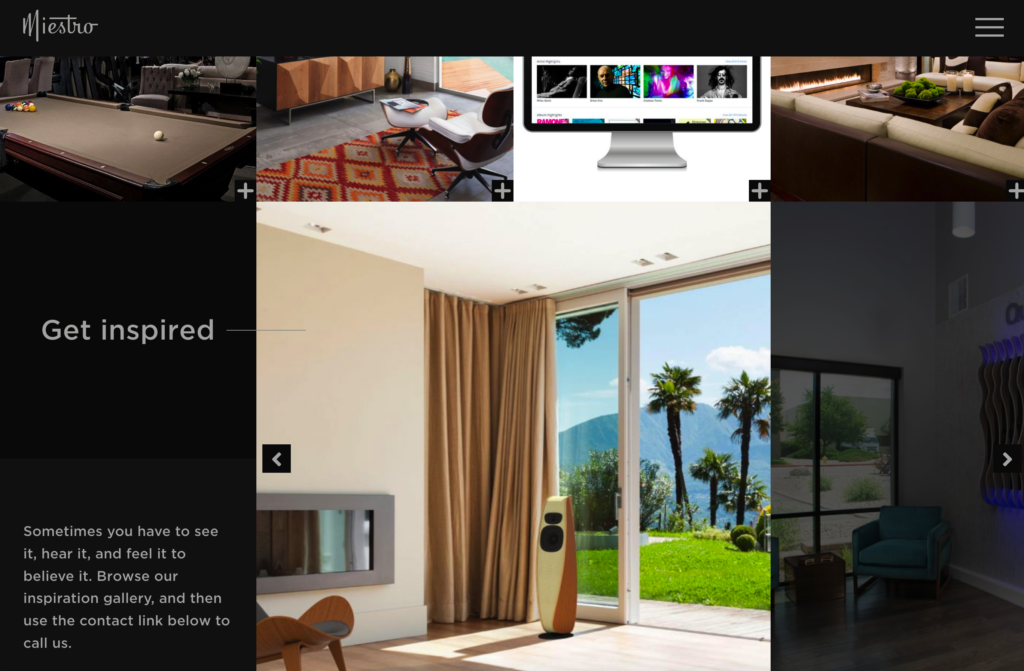
Here are a few of the upfront parameters the project required:
- The checkerboard pattern needed to be a *background*, as we weren’t going to create a million empty divs for each piece, plus that was unsustainable considering the website needed to be in a CMS and the content controllable.
- The checkerboard pattern needed to *always* be 4 squares across, and however many squares down that would fit.
- The background needed to match perfectly with the content Grid, at every size. This limits the amount of content the client could add to the website, but they were fully onboard. And I added character limits to each content area.
- There are lots of moving pieces in and out of the Grid.
- I really, really didn’t want to use JS for any of this.
The Checkerboard Background
I had a lot of false starts with just trying to get the checkerboard pattern itself to work in a way I like. The first (and most obvious to me) route I took was to try and use CSS gradients. I really wanted to avoid using an image for this, especially since the site is already heavy on graphics, videos, and image backgrounds are hard to get responsive *and* tiled. The gradient ended up not working well though – I could get them horizontally working with viewport units, but could not get them squared vertically and responsive at the same time.
After half of day with nothing to show (and half my hair missing!) Amelia on Twitter came to my rescue with a genius SVG idea. She generated a very small SVG for me to use as a background image that would tile, remain square, and be responsive. Yay, Amelia! She’s seriously awesome.
See the Pen Responsive checkerboard: fixed # columns, infinite rows by Amelia Bellamy-Royds (@AmeliaBR) on CodePen.
I asked Amelia if she wouldn’t mind explaining how she came up with this. Here’s what she had to say:
The checkerboard is created with a repeating image background. Each repeat of the image is four tiles of the checkerboard: one light and one dark in both the horizontal and vertical directions. The background image size is then set to the width and height as 2×2 grid cells, so that the image repeats line up with the content grid.
The SVG itself draws the set of four tiles, using one large background square ‘<rect>’ covering the entire 2×2 region, then two contrasting squares on top. By defining it as a data URI inside a Sass file, the colors of the squares can be interpolated from Sass variables for the rest of the theme. (Amber: I used the web inspector to copy/paste the generated data URI, but you could also use an online generator.)
The SVG code defines an exact square region in the aspect ratio from the ‘viewBox’ attribute. However, the grid cells — and therefore the background image size — are not always perfectly square. The viewport-width units used to set the height are slightly greater than 1% width when the width has a visible scrollbar displayed, making the “squares” slightly taller than they are wide. To compensate (and to match the grid cells), the SVG has the preserveAspectRatio=”none” attribute, which forces it to stretch & squish to the exact dimensions set in the CSS, instead of scaling down to fit,
The Grid…in CSS!
Creating the columns in CSS Grid was the easy part. Since it needed to be 4 squares across always, I simply used the repeat syntax to create 4 fr units:
.grid {
     display: grid;
     grid-template-columns: repeat(4, 1fr);
}
Which tells the browser to make four columns, each of equal space, taking up the entire width of the viewport.
But just like the checkerboard background, it was in the *vertical* that gave me grief. I quickly found out the limitations of CSS Grid, especially when you don’t know (or want to specify) the number of rows you have, but you want them to be specific heights. For example, some sections might need 2 rows, some might need 5 rows, but all of them need to be exactly the same height as each fr column unit, or they won’t remain square. Plus, it would need to add the whatever number of rows was required to fit the content.
Unfortunately there is no way you can use CSS Grid like this (or if there is, it’s really really hidden and someone please tell me). What I ended up doing was creating a manual amount of rows for each section (again, the client had limited content and understood this would mean they couldn’t add/remove rows without tweaking the CSS). To get the height of the rows to match what the width of the columns were, I used vw units (viewport width) for the rows!
.grid {
      grid-template-rows: repeat(2, 25vw);
}
This tells the browser to make two rows, each as high as 25% of the viewports width, making the grid area into a square.
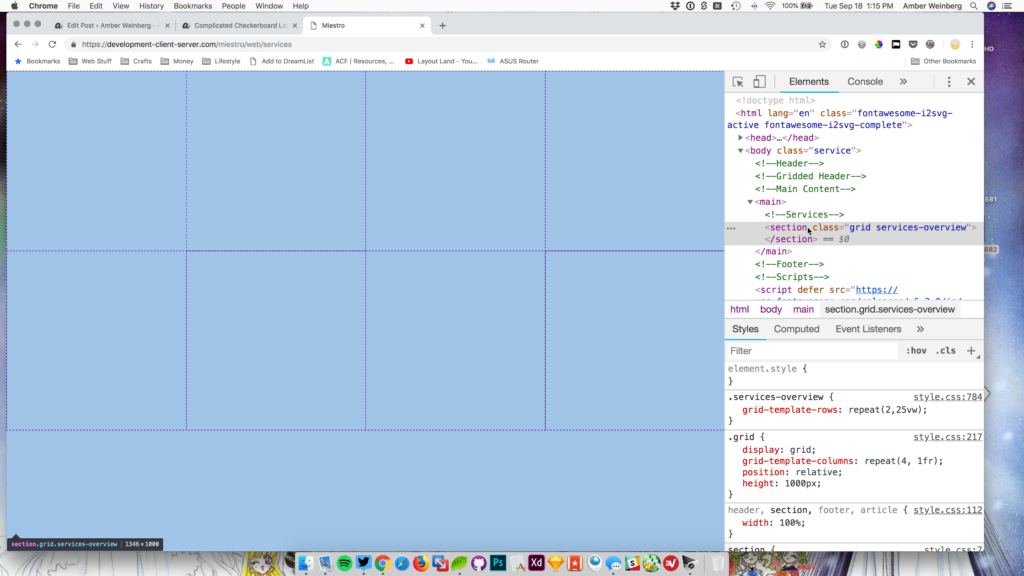
I never thought about the cool things you could do by mixing up viewport units in unexpected ways! Each section of the design had the grid class applied, and this maintained alignment with our nifty SVG background on the body.
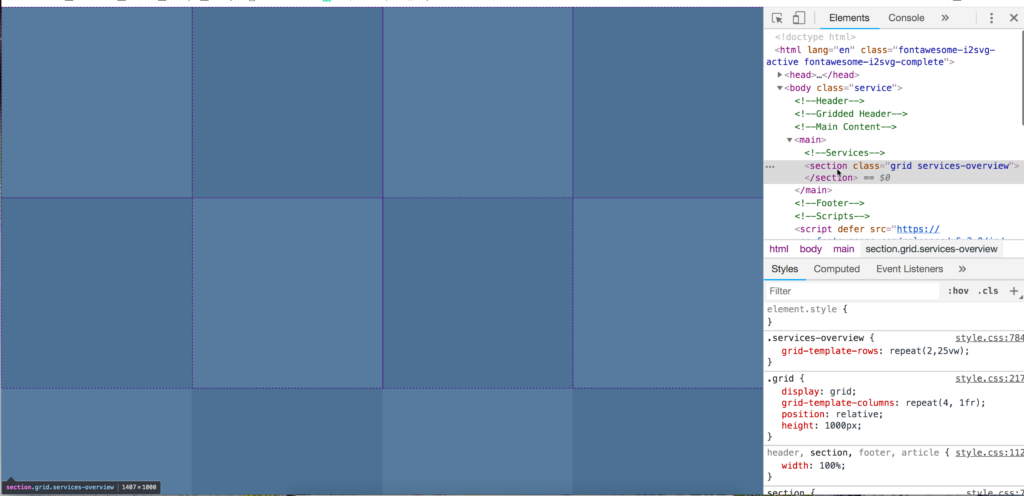
The rest of the Grid simply consisted of assigning each element to it’s area, and how/if it spanned multiple columns and rows. In this way, I felt like I was able to speed up the time it took me to code these websites significantly, probably almost in half.
Here’s what looks like a complicated layout (before Grid at least):
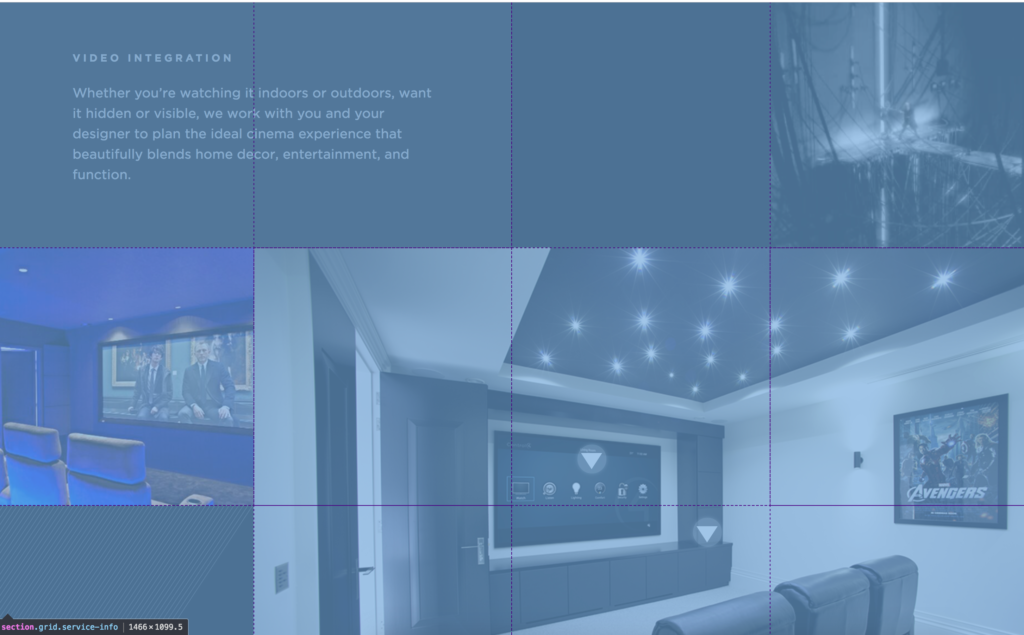
And the very, very few lines of code related to layout only:
.service-info {
    grid-template-rows: repeat(3, 25vw);
}

.grid {
    display: grid;
    grid-template-columns: repeat(4, 1fr);
    position: relative;
}
Making it work on everything
Using viewport and fr units meant the design was responsive by default. This site was one of the rare times I forgo a max-width container, otherwise the content wouldn’t have lined up with the checkboards or I’d have to figure out a way to repeat the squares multiple times with a fixed width, which didn’t work well at all. I decided to turn off both the checkerboard background and Grid itself once the viewport hit 1200px – which would include most mobile devices anyway. It was about at this point the content was getting uncomfortable to read or look at, since the squares were pretty small at that point. I basically took my .grid class and changed it to a block element:
.grid {
     display: block;
}
Which meant that all of the grid-template stuff in the parent, and the grid-column/rows in the children were ignored and everything went to it’s single column mobile version.

It’s amazing how little work it takes these days to create the sorts of layouts we could only dream of 10 years ago!