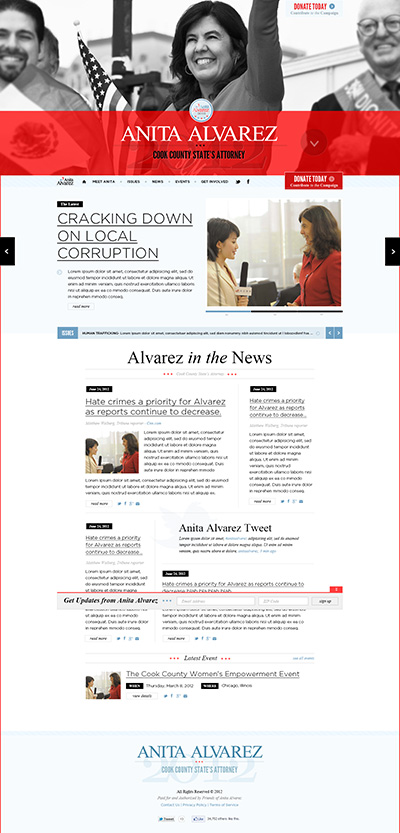
 For the past week and a half, I’ve been working on a site for a client of mine. It’s a very detailed design, along with several small detailed pieces of functionality – which means it took me forever to code just the homepage. However, I was quite surprised at how proud I was when I finally finished it – the site looked and ran very smoothly and I learned a ton of new techniques while coding it.
The design itself is pretty straightforward, as you can see from the mockup on the left. At first glance, there’s nothing too special about it (besides the nice design of course) – you might think it’s a straightforward hero, slider, content and footer – however my clients, the lovely BC Designers (I did their site as well), didn’t want a straightforward site – it was they who chose the cool functionality, I was only the coder. You can view a demo of the site here, until it launches.
Here’s what the homepage needed to do:
- The top portion (what is called the hero, for those unfamiliar in web design) needed to stay static, while the main content slide over it.
- Once the header part finished sliding to the top of the browser, it needed to anchor there permanently.
- The red donate button needed to push the blue donate off the page once it touched it.
- The newsletter content area needed to slide out into view once you scrolled to the “In the news” section and anchor to the button of the browser, until you reached the bottom where it slide off of view. It also needed to slide away if one clicked the close button.
- A red border needed to wrap around the entire outside of the site (except for the hero area)
Lucky for me, I only support IE8 and above, so I didn’t really need to worry about too much in the ways of browser support – as a matter of fact, after testing this in IE8, it worked perfectly the first time (yay).
Let’s take a look at how I accomplished some of these features – as I think they were really cool and should be shared 😉
The Hero
The hero was the easiest part as it required no JS, just simple HTML and CSS. All we need to simply do is create two main content areas.
<div id="hero"></div>

<div id="outerContainer"></div>
Easy. For the CSS, we’ll simply fix position the hero to the top of the site, and then give the outer container a top margin, equal to the height of the hero container. For example:
#hero { height: 100px; left: 0; position: fixed; top: 0; width: 100%; }

#container { float: left; margin-top: 100px; position: relative; width: 100%; z-index: 1; }
Believe it or not, that’s it. If you understand basic CSS stack flow, you’ll know that positioning something absolute or fixed removes it from the document flow and allows you to position it independently of the rest of the elements. Positioning something fixed means it stays where it is relative to the browser, and giving the floating element a margin equal to the height of the fixed element means it’ll show up below the fixed element “looking” like it’s in the regular flow.
All we then need to do is to give the second element a relative position, so we can use z-index to bring that layer forward, meaning when the user scrolls down, the container will scroll on top of the hero (or whatever you’ve made the fixed element). Gives you sort of a parallax look, but without the hassle.
Anchoring the Sliding Header
So once we’ve got our outer container sliding properly, you’ll notice the rest of the side continues to slide out of view like normal. However, the client wanted the header to stop scrolling once it reached the top of the browser window, therefor becoming another fixed element. However, it needed to resume it’s scrolling state if the user decided to scroll back up around the hero area.
This was easily accomplished – not by my own coding, but by a lovely little plugin of Kris Noble‘s, called Portamento. This was set up and working very easily (once I fixed all of my own damned CSS bugs).
Bouncing Buttons
Instead of having the red donate button (in the header) simply slide on top of the blue donate button (in the hero) and stay once the Portamento had completed, we actually wanted the red button to “push” the blue button off the browser edge (man that red button is mean!). This was accomplished in Javascript by calculating how far the red button was from the top of the browser window, and once the buttons got close enough (or “touched”), we used simple jQuery to animate the blue button off screen.
This script was a little tricky to accomplish – even with the help of a JS dev for a husband, but in the end I think we accomplished something nice.
$(window).scroll(function(){
		var margin = $('#hero a').css('marginTop').replace('px', '');
		var scrollTop = $(window).scrollTop();
		if(topDonateButtonShown && (547 < scrollTop)){ $('#hero a').animate({marginTop : "-65px"}, 'fast'); topDonateButtonShown = false; } else if(!topDonateButtonShown && (547 >= scrollTop)){
			$('#hero a').animate({marginTop : "0"}, 'fast');
			topDonateButtonShown = true;
		}
	});
We started by creating a function that would fire when the user scrolled the browser window (that would be $(window).scroll…isn’t jQuery just so dang easy to understand?)
We then assigned it to a variable (scrollTop) and created an if/else statement that basically fired if the user was scrolled down 547 pixels or more – which hid the blue button with an animated margin top, but then returned it if we scrolled back down.
Scrolling & Hiding Newsletter Form
The newsletter had several little functions it needed to perform. Let’s start from the top.
It first need to show up *only* when we’ve scrolled down enough to see the “In the news” section. This was another easy trick using z-index – you’ll need to set the newsletter to a fixed position and anchor it to the bottom. I then took the element above the “In the news” section, which was the featured post slider and gave it a position relative and a z-index of 1. This made sure to place the featured post section above the newsletter area – effectively making it look like the newsletter area slide out from under the featured posts section as the user scrolled down.
The newsletter needed to then remained anchor to the bottom of the browser window (again accomplished by a simple fixed position and bottom of 0) but then slide down once the user hit the bottom the site, returning when the user scrolled back up again. This functionality was so similar to the button one above, that I simply copied and pasted the function, and customised it a bit:
        $(window).scroll(function(){
			if($(window).scrollTop() + $(window).height() + 10 >= $(document).height()) {
			$('#newsletter').stop();
			$('#newsletter').animate({bottom : "-100px"}, 'fast');
			newsletterbutton = false;
		} else if(!newsletterbutton){
			$('#newsletter').stop();
			$('#newsletter').animate({bottom : "0"}, 'fast');
			newsletterbutton = true;
		}
	});
The main difference, is that we needed to give an offset of about 10 pixels, so it wasn’t so touchy if the user scrolled beyond the site (which is a weird bouncy feature of Mac OSX).
Red Browser Border
The red border around the entire browser area (except for the header) was actually a bit more difficult than it looked. Simply giving a border on the body area didn’t work – it made the site scroll horizontally and didn’t want to continue on around the entire site – plus I didn’t want it around the hero.
So I decided to put it around the outer container, which blew up the layout (awesome!). Of course if you try to put a border on something that’s 100% wide already, it’s going to stretch beyond 100% and produce a horizontal scroll, which is always quite ugly. You can’t use percentage widths in borders either – so that wouldn’t work either.
Interestingly enough, I’d never used box-sizing before, but it somehow popped up in my head when I was faced with this issue. Simply putting it on the element (I already had a majority of the side coded, so I didn’t want to put it on everything) fixed the problem immediately.
#outerContainer { border-left: 5px solid #fc4e4e; border-right: 3px solid #fc4e4e; -moz-box-sizing: border-box; -webkit-box-sizing: border-box; box-sizing: border-box; width: 100%; }
It also works in IE8 and up. Perfectly. I love this new element so much, I’ve applied it universally to my starter theme, so I can use it everywhere. I’ll just be an interesting first few sites when I no longer need to do the maths. I hate the maths.
It’s the small things that make a site fun to use…
…And to code. None of the stuff I mentioned above is really ground-breaking, but is pretty uncommon and makes what would’ve been a plain static site into something unexpected and a bit more fun!

Amber Weinberg
Amber is a freelance front-end developer specializing in semantic and accessible custom WordPress themes. She works with agencies and other freelancers to bring their designs to life using custom ACF flexible layout builds - making them more performant and less buggy while allowing the client easy customization without breaking the design system.