I’ve been dying to try out a real responsive design for awhile now on my site, but didn’t feel like recoding the whole thing. Thankfully, I was able to beg bribe get the fantastic Paul Maloney to redesign my site for me, which gives me the perfect excuse to try out all the new bells and whistles. And what better way to learn than to write about it as I go along?
This is going to mostly likely be a long series, much longer than my How To Build a WordPress CMS Theme series, so please bear with me. And like that series, I’ll also be packaging this one into a downloadable eBook for you guys. 🙂 I’m also contemplating packaging this current theme up to sell licenses for a few dollars. Let me know if you’d be interested in that.
This series also assumes you already have a good working knowledge of WordPress, CSS, HTML and basic PHP. I want to focus mainly on how I put the elements together to make them responsive.
Let’s move on.
Other Posts In This Series
Goals For This New Design
- Fully responsive, from larger monitors to iPhone size devices.
- Try out the HTML5 Boilerplate with Modernizr.
- Completely done in HTML5, including new tags.
- As always, increasing semantics and cleanliness of code.
- Finally moving my portfolio section to it’s own custom post type.
- Use of CSS3 animations and easter eggs
- Use the least amount of images as possible.
- Accessible in IE7+ and all modern browsers.
The Mockups
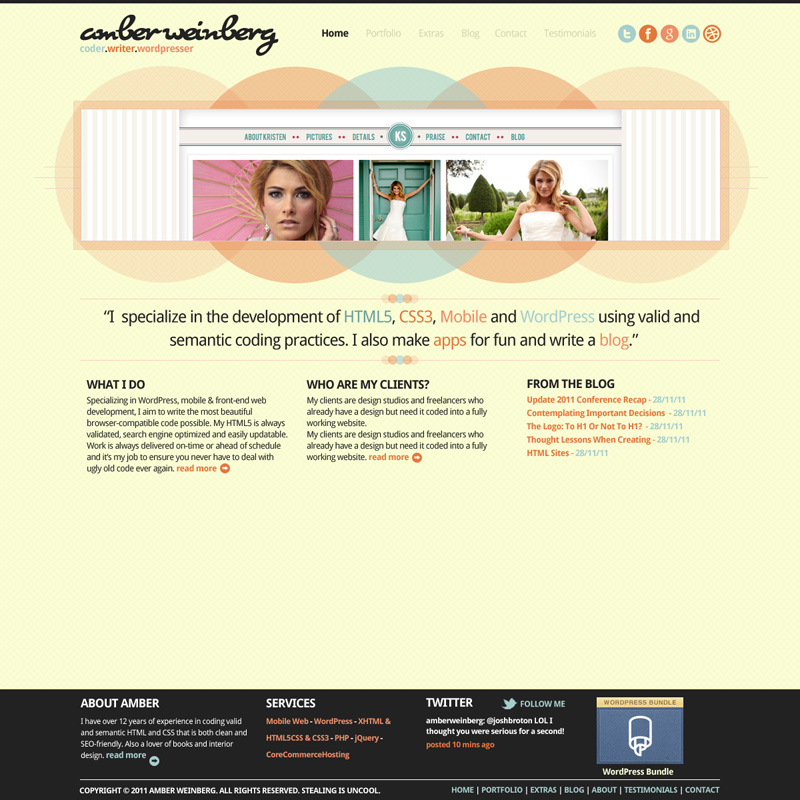
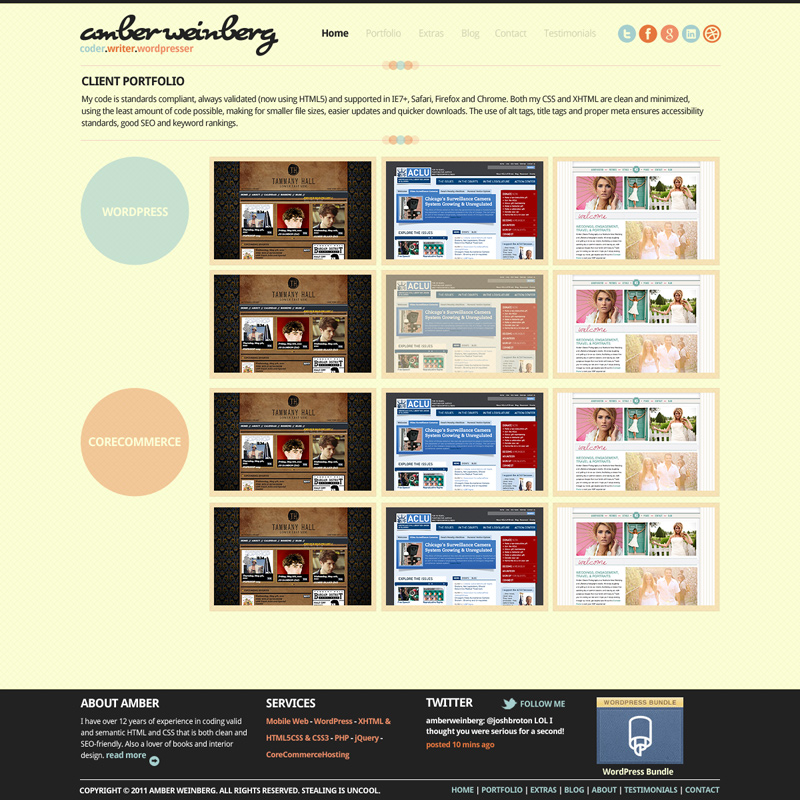
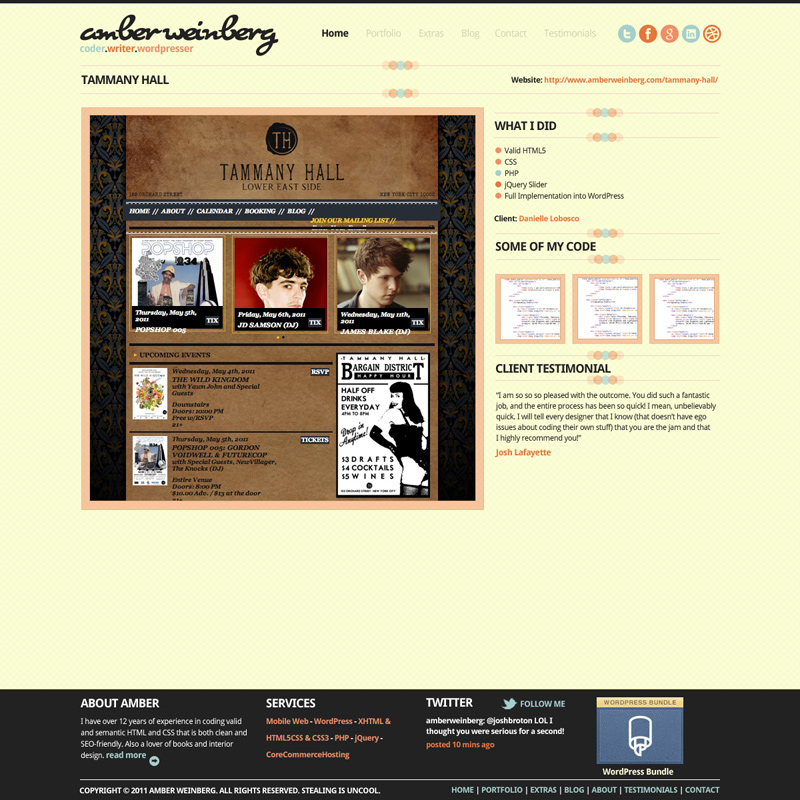
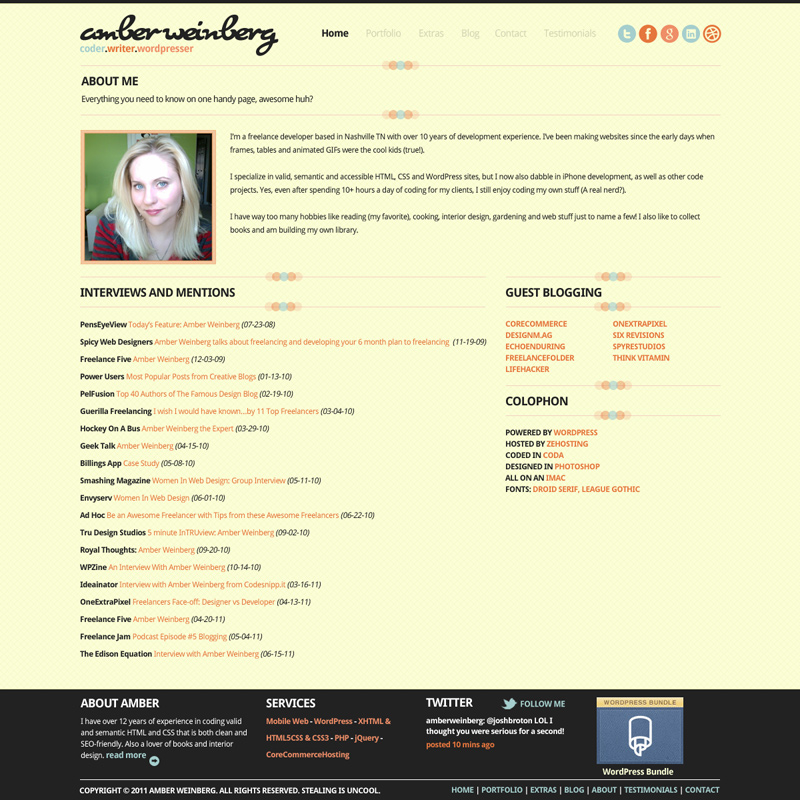
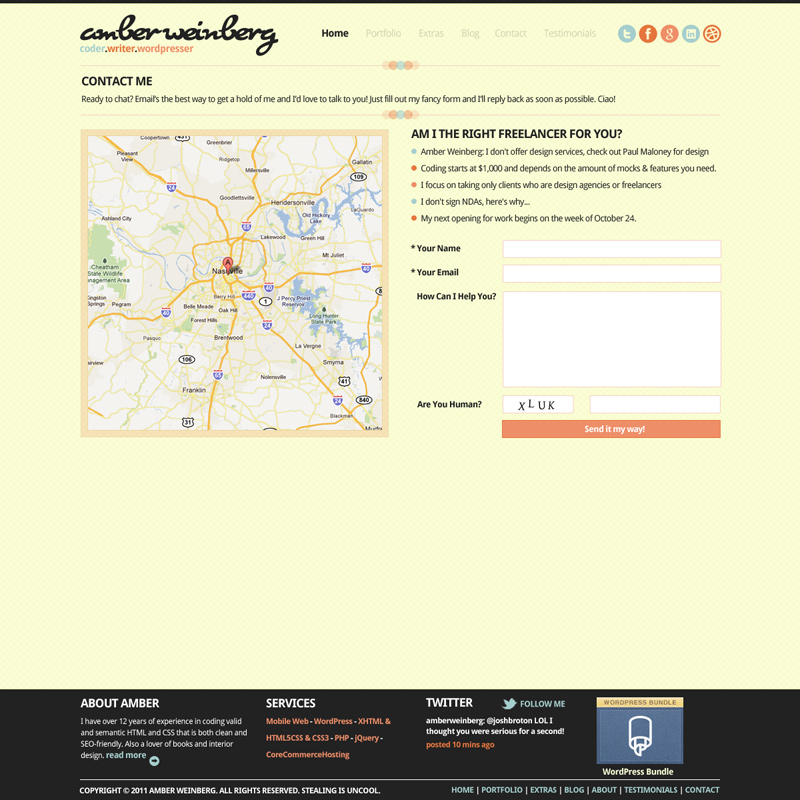
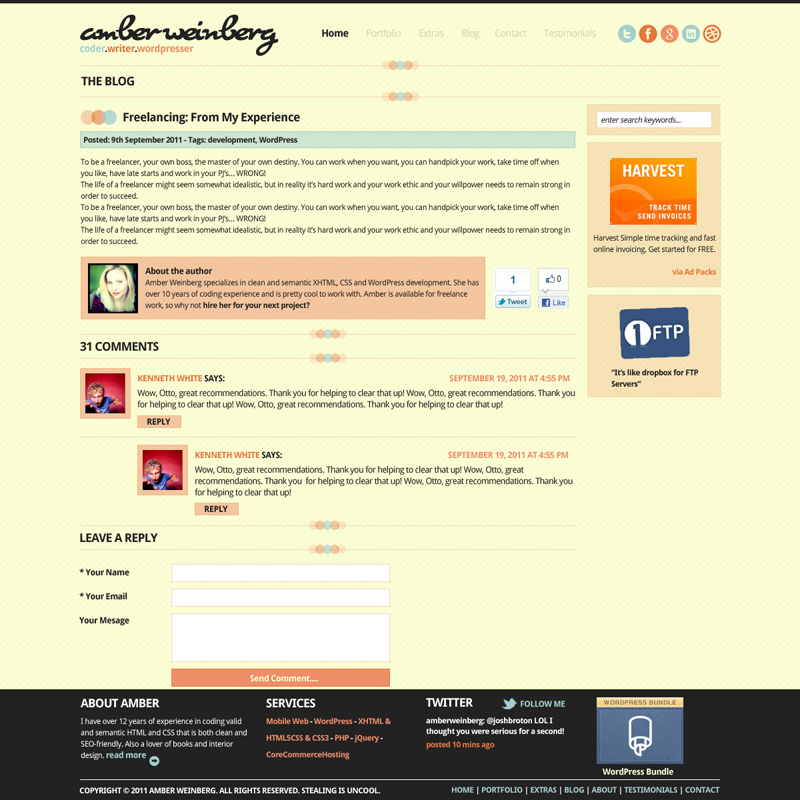
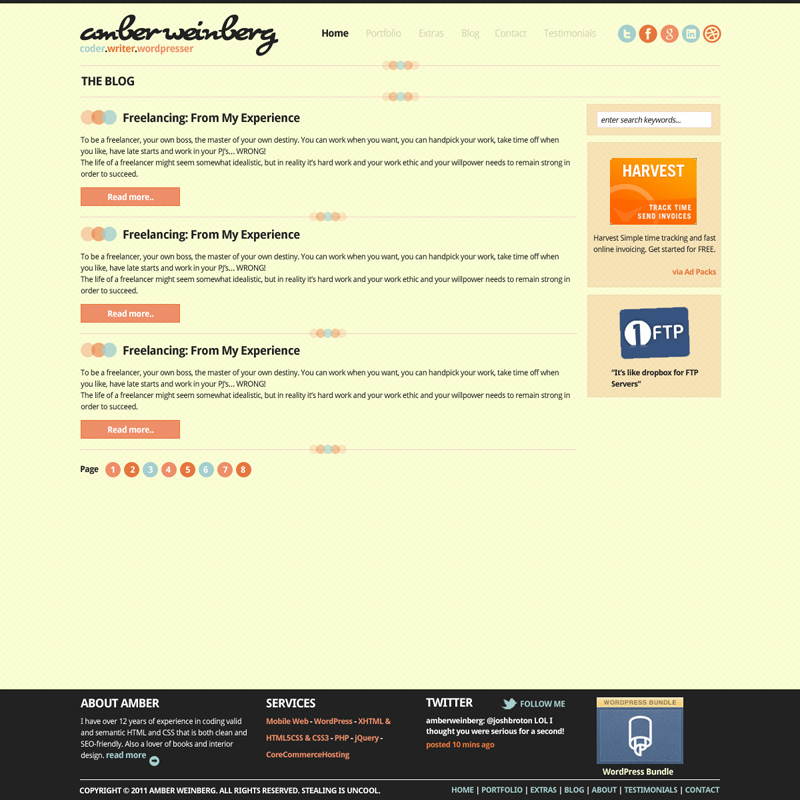
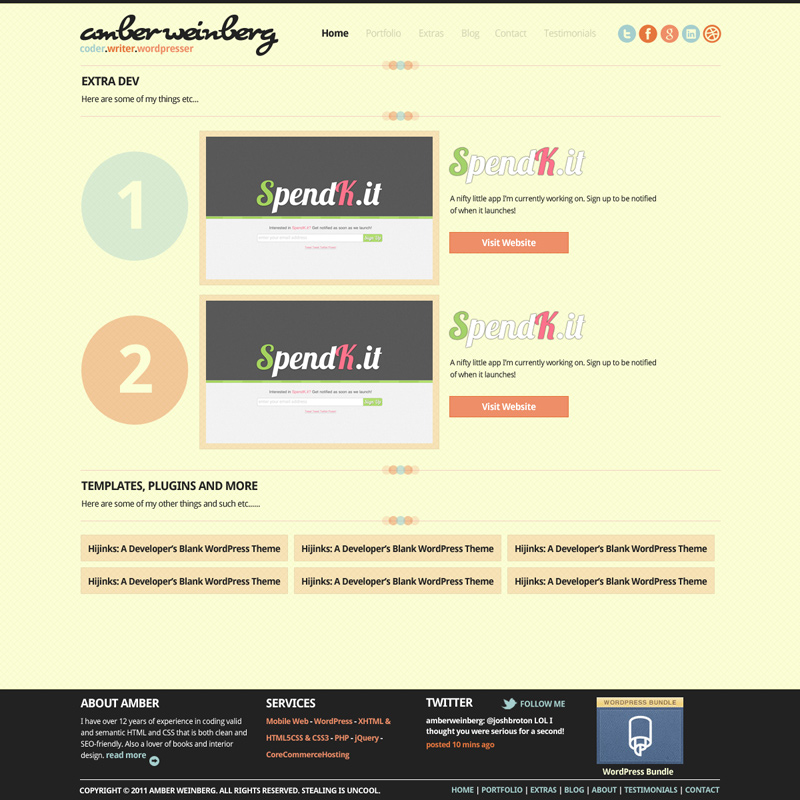
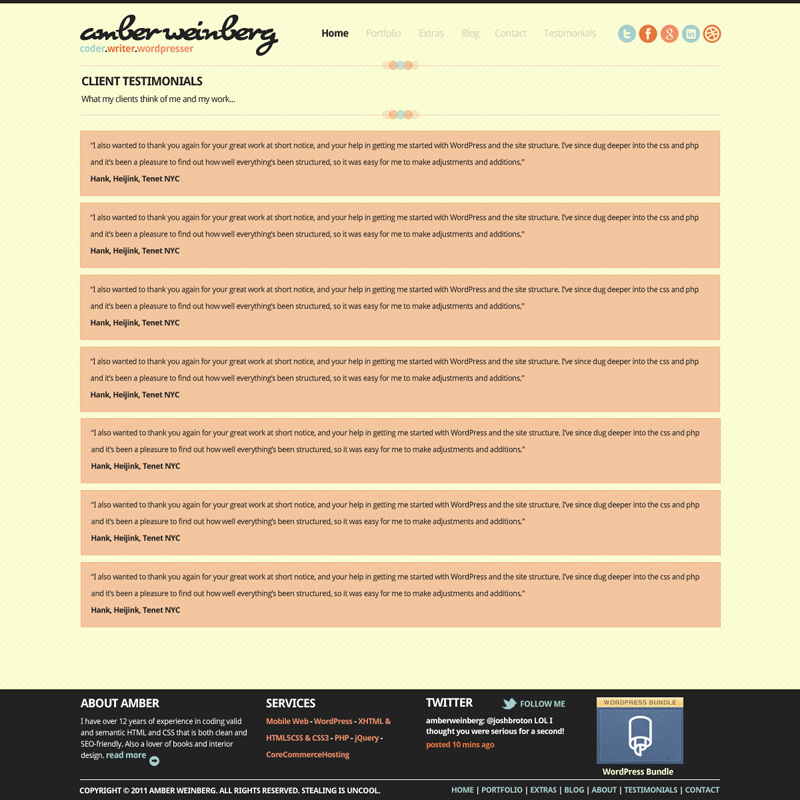
Here’s what we’ll be coding:
Getting Ready
Because I’ve already got this current site up and none of the content will be changing, I’m not going to start from a fresh install of WordPress. Instead, I’m going to make use of the Theme Switch and Preview plugin, which allows me to develop the new site live, without anyone but myself seeing it, allowing me to use all my plugins and content.
I won’t be giving access to the PSDs (sorry guys!) but you can easily follow along, and yes, there are ways of making a clone of this new site. I just ask you use it for learning/testing purposes only, as this is my business design. I just thought the best way to learn is to use a real site that any of us could have.
Download and copy my Super Hijinksified starter theme to your WordPress theme folder and give it a fancy name. It’s got the HTML5 Boilerplate already integrated in it. I’m calling my new theme Amber’s Circles, so the folder is ambers-circles.
I normally code in a very specific way, I write down all of the sizes and grab the images from the PSD, I code all of the HTML, and then I code all of the CSS. This time, I’m wanting to pay closer attention to everything especially since this is my first full responsive design, so I’ll be jumping back and forth between the three stages.
Let’s Code
I like to work in a top down approach, so let’s start out with the basics. First, you’ll need to fill out the top of style.css with your own information. This will show up in the themes section of WordPress. Make sure you also create your theme screenshot.png file and place it in the top directory in your theme.
Now get the background sliced up. Simple enough and nothing special. The max size of the site is 960px wide, not including the background frame and circles of the slider on the homepage, so let’s add a container with max-width and center the site:
.container { background: url('images/bkg.jpg') #FFF; margin: 0 auto; max-width: 960px; }This will go inside of our header, footer and content elements, since they need to stretch the entire width of the browser. I also want to make sure that the site isn’t going to butt up against the edges on smaller devices, so let’s add a bit of padding:
.container { margin: 0 auto; max-width: 960px; padding: 0 3%; }Switch back to the browser and check out what you’ve done (you might want to but a temp background on the header so you can see it). Responsive already and we’re just getting started!
On my new site, we’ll be using variations of Droid Sans, so let’s go ahead and drop in the link to that from Google
<link href='http://fonts.googleapis.com/css?family=Droid+Sans:400,700' rel='stylesheet' type='text/css'>Set the font to 100% since we’ll be using ems. 100% is roughly equal to 16px.
body { background: url('images/bkg.jpg') #FFF; font: 100% Droid Sans, Arial, sans-serif; }Let’s go ahead and set our padding for paragraph elements as well.
p { padding-bottom: 15px; }The Header
Your header.php page show look like:
<!--[if IEMobile 7 ]><html class="no-js iem7" manifest="default.appcache?v=1"><![endif]-->
<!--[if lt IE 7 ]><html class="no-js ie6" lang="en"><![endif]-->
<!--[if IE 7 ]><html class="no-js ie7" lang="en"><![endif]-->
<!--[if IE 8 ]><html class="no-js ie8" lang="en"><![endif]-->
<!--[if (gte IE 9)|(gt IEMobile 7)|!(IEMobile)|!(IE)]><!--><html class="no-js" manifest="default.appcache?v=1" lang="en"><!--<![endif]-->

<!DOCTYPE html>
<html>
	<head>
		<meta charset="UTF-8"/>

		<title><?php wp_title('«', true, 'right'); ?> <?php bloginfo('name'); ?></title>

		<link rel="stylesheet" href="<?php bloginfo('stylesheet_url'); ?>"/>
		<link rel="pingback" href="<?php bloginfo('pingback_url'); ?>" />
		<link href='http://fonts.googleapis.com/css?family=Droid+Sans:400,700' rel='stylesheet' type='text/css'>

		<?php if ( is_singular() ) wp_enqueue_script( 'comment-reply' ); ?>
		<?php wp_head(); ?>

		 <meta name="viewport" content="width=device-width,initial-scale=1">

  		<script src="<?php bloginfo('template_url');?>/js/libs/modernizr-2.0.6.min.js"></script>
	</head>

	<body <?php body_class(); ?>>

		<header>
			<div class="container"></div>
		</header>
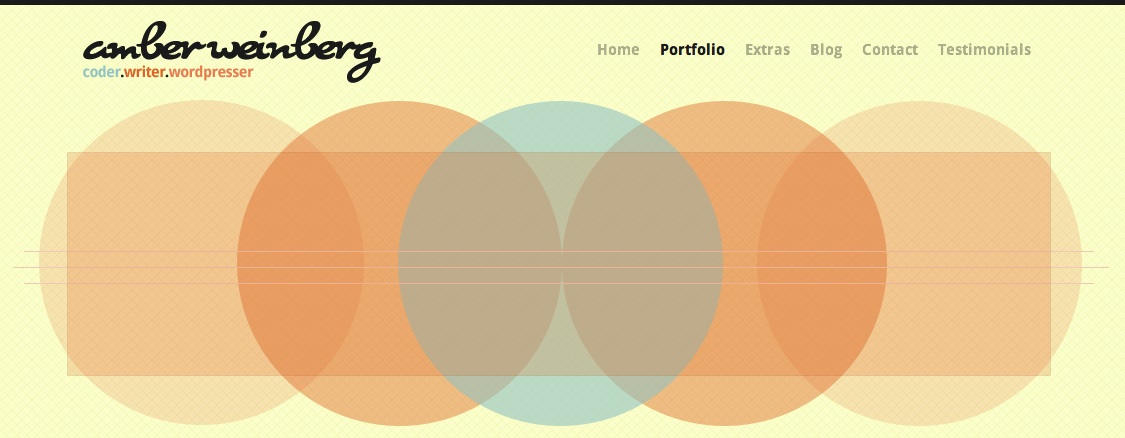
The header is always first – and this time it’s not going to be a boring one! Paul came up with the awesome navigation, where the elements that aren’t rollod over will fade out when one is, and the active page will be struck through. This is also where we’ll be able to start using CSS3 animations.
Let’s add the logo. We won’t need a class because we can use the cascade selector in CSS instead. Don’t forget your standard bloginfo elements on the URLs:
<header>
<div class="container"><a title="Amber Weinberg: Freelance Web Developer specializing in WordPress, Mobile, CSS and HTML5 Development" href="<?php bloginfo('siteurl');?>"><img src="<?php bloginfo('template_url');?>/images/logo.png" alt="Amber Weinberg: Freelance Web Developer specializing in semantic WordPress, Mobile, CSS and HTML5 Development" /> </a><?php wp_nav_menu( array('menu' => 'Main', 'container' => false, )); ?></div>
</header>
In the CSS, we’ll need to add a top border of 5px to the header element, as well as float and make sure it stretches 100%;
header { border-top: 5px solid #222; float: left; padding-top: 20px; width: 100%; }Go ahead and float the logo left. Create your menu in WordPress under Appearance > Menus and name it “Main”. If you’re using custom post types and taxonomies like I am, now would be the time to create them in your functions.php file. I went ahead and created three for my portfolio, extras and testimonials sections. Add some basic styling to the header elements:
header { border-top: 5px solid #222; float: left; padding-top: 20px; width: 100%; }
header { border-top: 5px solid #222; float: left; padding-top: 20px; width: 100%; }
header .container > a, header li { float: left; }
header ul { float: right; padding-top: 5px; }
header li { list-style: none; padding: 0 10px; }
header li a { color: #222; font-size: .9375em; font-weight: 700; }
Now we can get to the fun stuff, CSS animations!
For the logo, I want it to slowly fade out when it’s hovered over:
header .container > a:hover { opacity: .8; -webkit-transition: opacity .5s ease; -moz-transition: opacity .5s ease; transition: opacity .5s ease; }For the nav rollovers, I want the rolled-over item to stay exactly the same, but the other items to fade out.
header ul:hover li a { opacity: .3; -webkit-transition: opacity .5s ease; -moz-transition: opacity .5s ease; transition: opacity .5s ease; }
header ul:hover li a:hover { color: #222; opacity: 1; }
Is that not cool or WHAT?
Of course, we’ll need a fallback for IE8 and below:
.no-rgba header ul:hover li a { color: #dee1be; }
.no-rgba header ul:hover li a:hover { color: #222; }
Now to go ahead and add the social media icons as well. Nothing too special here.
header li.menu-item-4780, header li.menu-item-4782, header li.menu-item-4781, header li.menu-item-4783 { padding: 0; position: relative; top: -5px; }
header li.menu-item-4780 a, header li.menu-item-4782 a, header li.menu-item-4781 a, header li.menu-item-4783 a { background: url('images/iconTW.jpg') no-repeat; float: left; height: 27px; margin-left: 5px; text-indent: -1000000px; width: 28px; }
header li.menu-item-4780 a { margin-left: 20px; }
header li.menu-item-4782 a { background: url('images/iconFB.jpg') no-repeat; }
header li.menu-item-4781 a { background: url('images/iconDR.jpg') no-repeat; }
header li.menu-item-4783 a { background: url('images/iconVC.jpg') no-repeat; }
Now, we need to keep sizes and devices in mind, and when switching over to a screen smaller than 780, the header, while working, wasn’t exactly pretty. So I decided that having the logo center itself, with the navigation centered beneath it, would work better. When it gets down to mobile, the nav goes to two lines.
@media only screen and (max-width: 768px) {

	header .container > a { display: block; float: none; text-align: center; }
	header ul { clear: both; float: left; text-align: center; width: 100%; }
	header ul li { display: inline-block; float: none; }

	header li.menu-item-4780, header li.menu-item-4782, header li.menu-item-4781, header li.menu-item-4783 { top: 9px; }
}
Next week
We’ll be moving on to the content inside the homepage….see you then!

Amber Weinberg
Amber is a freelance front-end developer specializing in semantic and accessible custom WordPress themes. She works with agencies and other freelancers to bring their designs to life using custom ACF flexible layout builds - making them more performant and less buggy while allowing the client easy customization without breaking the design system.