Everyone loves a Mac. Yup, everyone. Out of all the awesomeness of a Mac though, there’s one problem that faces developers – testing in IE. I’ve gone through several different ways of checking out your site in IE, so I’m here to tell you it can definitely be done!
I’m going to break this article into three sections: on the web, on the Mac and off the Mac; which will allow me to explain the various different ways you can make sure to get your website or application working perfectly on any browser, no matter what the crappy IE throws at you.
On The Web
I’ve tried a few different web applications that allow me to check out how the site looks in IE. Although web applications give you more browsers you can test in for free, it also has the set back in being that they’re only screenshots. But a lot of times you only need to get a quick screenshot anyways, so web apps are the fastest way to get them.
BrowserShots
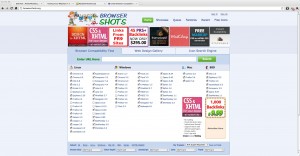 Browsershots isn’t the prettiest web app, but it’s the most extensive way of testing your site without having to own and install every single browser known to man. It’s one of the first apps I found for testing, and was pretty useful for awhile, especially when you’re in a pinch.
Basically, you put in the address of the site you want to test and then select which browsers you want a screenshot in. The major downside to this, is that there isn’t a computer running the screenshots, it’s people taking the shots for you. Which means you’ll have to wait anywhere from 10-30+ minutes for the screenshots. Not helpful when you’re in the middle of developing.
Adobe BrowserLab
 Adobe BrowserLab is was my favorite way of testing my websites before I found VMWare. It requires an Adobe account (which is free), and while they claimed this wouldn’t be free for long over a year ago, it still is.
You can create custom browser lists that will automatically check the website you input in. These are also screenshots, but are automated, which means you get your shots in less than a minute. This service is the next best thing to a real browser.
On The Mac
Being able to test in Internet Explorer is pretty much the best way to do it. You don’t have to leave your computer, you get a real browsing experience versus screenshots, and you can test animations and rollovers.
VMWare Fusion
 VMWare Fusion has to be the coolest app I’ve ever come across, and the best way to test your sites. The allow a 30-day free trial and the app is on sale right now for $45. I’m still in the free trial period, but I can definitely say that I’m going to purchase it as soon as the trial’s over.
Basically, VMWare Fusion allows you to install a virtual version of Windows on your Mac. That means in addition to purchasing Fusion, you’ll also need to have a copy of Windows.
I was able to install VMWare Fusion and a copy of Windows 7 Home Edition in less than 30 minutes with no problems at all. The OS runs very quickly and smoothly, and feels like I’m actually using a Windows machine (besides that fact it doesn’t, you know, crash every 5 seconds). You can then install any Windows programs you like and be able to test your sites in anything.
So far, I haven’t installed any addition software since IE8 allows you to test in IE7 as well. But who knows what crazy browsers you’re forced to support. 🙂
Off The Mac
Sometimes you have an old crappy Windows laptop laying around (last count, we had 3!) that really isn’t good for anything. If you can at least get it running somewhat, you can use that as a testing machine, if you’re not wanting to spend the money on installing a virtual version on the Mac. This is probably the next best way to test your sites next to VMWare, but it also comes with it’s drawbacks. Mainly, you need a Windows laptop lying around, and you’ll often have to leave your desk or move around to use it.
IETester
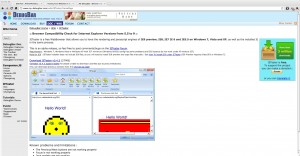 IETester is a very helpful (yet somewhat crash-prone) app that allows you to test several versions of IE all from one app. That means you don’t have to install multiple versions of IE or anything.
It’s free to download and use and pretty easy to set up. The sites look and act just like they would in a real install of IE.
Multiple IE
 I used Multiple IE for the longest time at my old places of employment. It’s pretty useful, although now that I know there’re better options, I don’t really recommended it anymore, simply because it’s a pain to get working right. You also have to install several versions of IE, and last I heard it doesn’t work on any operating systems newer than XP.
Your Thoughts
What do you use to test in IE on a Mac?

Amber Weinberg
Amber is a freelance front-end developer specializing in semantic and accessible custom WordPress themes. She works with agencies and other freelancers to bring their designs to life using custom ACF flexible layout builds - making them more performant and less buggy while allowing the client easy customization without breaking the design system.